---
title: "Approve an Object"
description: "Send an object for approval, attach supporting evidence, and track it through to production."
---
TL;DR
Open your object's Approvals tab, pick an Approval Workflow, click Request Approval, attach a simulation as evidence, and submit one request per responsibility. The object moves to Pending Approval until every responsibility has accepted.
The same flow works for every object type (data elements, features, models, policies, global functions). Only the workflow and reviewers configured for that type may differ.
## Before you start
* The object must be registered (saved as a draft).
* A simulation must be run on the object so it can be attached as evidence. Admins can make this optional in **Settings**, but it is required by default.
* An Approval Workflow must exist for that object type (for example, a workflow configured for Models). See [Configure an Approval Workflow](/user-guide/admin-guide/configure-approval-workflow/).
* You need edit access to the object. Anyone with edit access can submit it for approval.
## The status flow at a glance
An object travels from **Draft** to **Approved**. When you request approval, the platform first checks the object's inputs and routes accordingly: drafts can be grouped into the request, pending inputs must be resolved first, and fully approved inputs let the request go straight to **Pending Approval**. From there each reviewer accepts, asks for changes, or vetoes. A veto sends the object to **Rejected**, which you clone to start a fresh Draft. The flowchart below maps every branch; the rest of this page walks through these in detail.
## How to Send an Approval Request?
Follow these steps to send an object for approval and track it to a decision.
#### Open the Approvals tab
Open the object's details page and click the **Approvals** tab.
Open the object and switch to the Approvals tab to start the approval process.
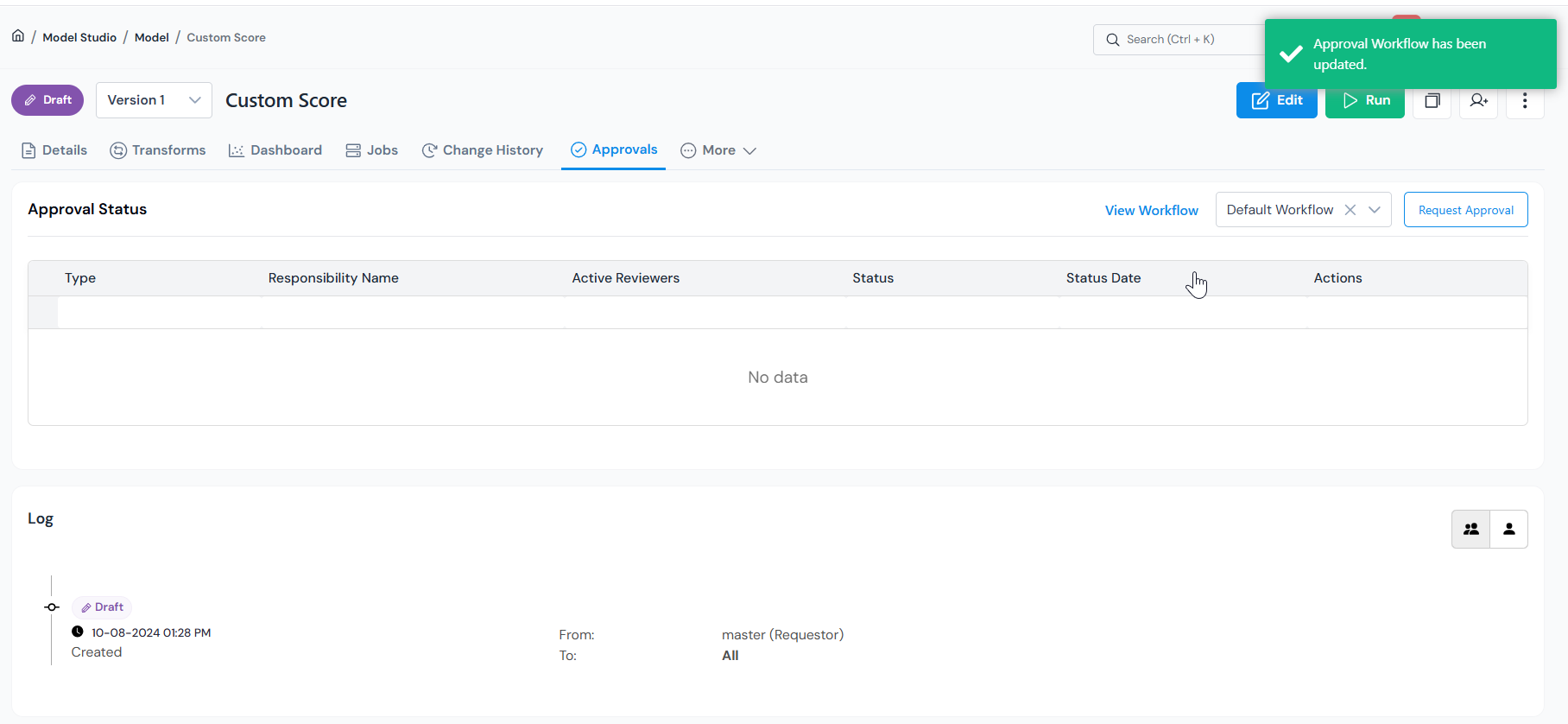
If the tab shows **Approval Workflow Not Selected**, pick a workflow from the *"Type or search for Approval Workflow"* dropdown. The dropdown next to **Request Approval** also lets you switch workflows later if more than one is configured for this object type.
Once a workflow is selected, the Approval Status table appears with **View Workflow** and **Request Approval** at the top right. Click **Request Approval** to open the form.
After selecting a workflow, use Request Approval to open the form, or View Workflow to inspect the responsibilities.What View Workflow shows (responsibilities reference)
Clicking **View Workflow** opens a dialog listing every responsibility (a review role such as Code Quality or MRM) on the selected workflow, with its **Veto Power** and **Editable** flags. In a sequential workflow, only the current sequence group can review at a time; later responsibilities activate automatically.
Example for `Model MRM Approval Workflow`:
#
Responsibility
Veto Power
Editable
1
Code Quality
No
Yes
2
Dev Team
No
Yes
3
MRM
Yes
No
4
Fair Lending
Yes
No
Code Quality and Dev Team review without Veto and keep the object editable. MRM and Fair Lending hold Veto and lock editing once their review starts.
#### Resolve the input check
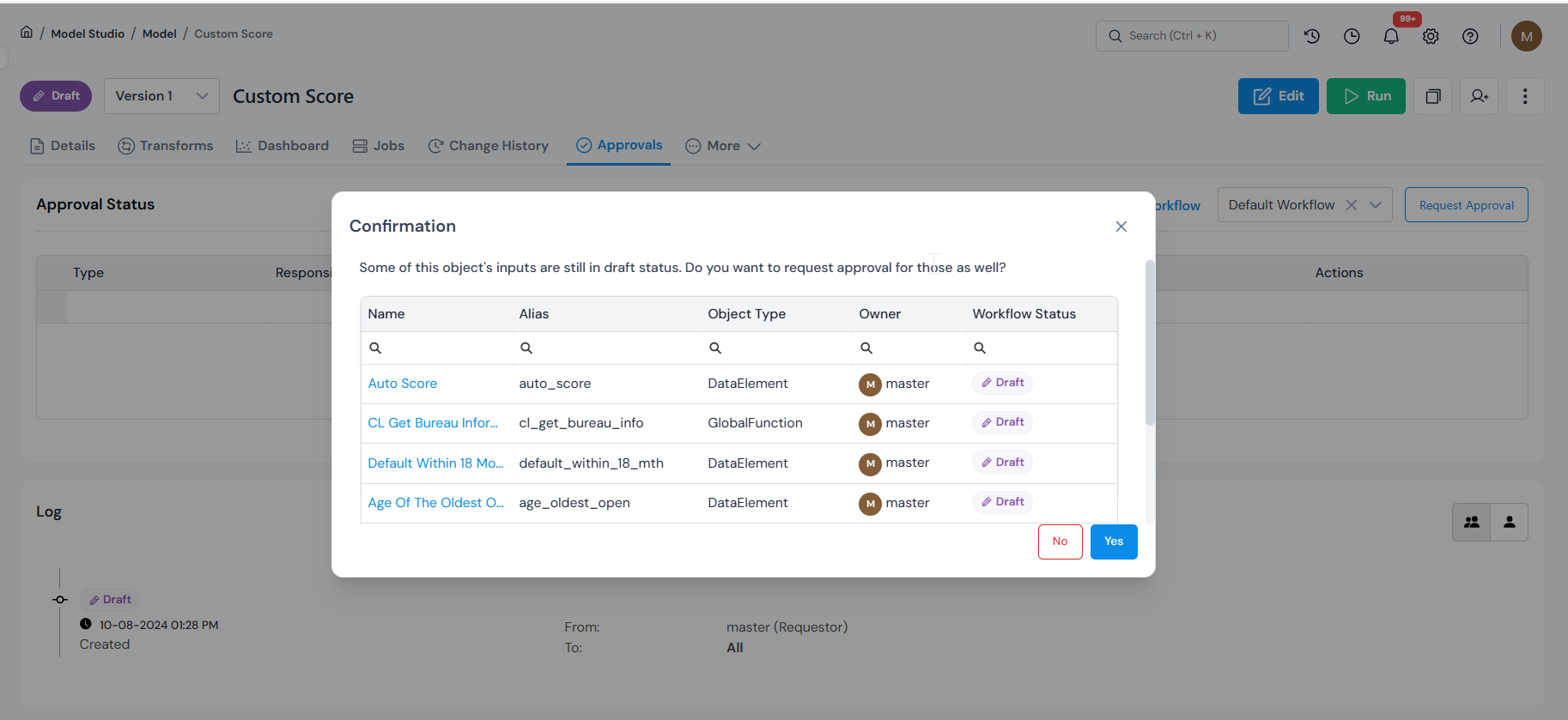
When you click **Request Approval**, the platform first checks every input the object depends on:
Input state
What happens
All inputs Approved
The request form opens directly. Continue to Fill in the Request Approval form below.
Some inputs in Draft
A dialog asks whether to bundle the draft inputs into the same request (group approval, see below). Click Yes to include them. You cannot skip the draft inputs and send only the main object: get each draft input approved on its own first, or group them into this request.
Some inputs in Pending Approval
You cannot continue. The dialog lists each blocking input; wait for those requests to finish or cancel them, then try again.
When inputs are still in Draft, choose Yes to bundle them into this request. The draft inputs must be approved with it, either grouped here or approved on their own first.How group approval works (bundling draft inputs)
**Group approval** bundles the main object and its draft inputs into a single request, so reviewers sign off on all of them together instead of one at a time.
If you click **Yes** in the Draft inputs dialog, the main object and its draft inputs are bundled into one request.
* Reviewers make their decision on the main object's Approvals tab; that decision applies to every bundled input.
* Before accepting, the reviewer must tick the checkbox next to each bundled input. Leaving any unchecked makes the action fail.
* The main object's approval history lists every bundled input. After approval, each bundled input's Approvals tab shows a reference link back to the main object.
#### Fill in the Request Approval form
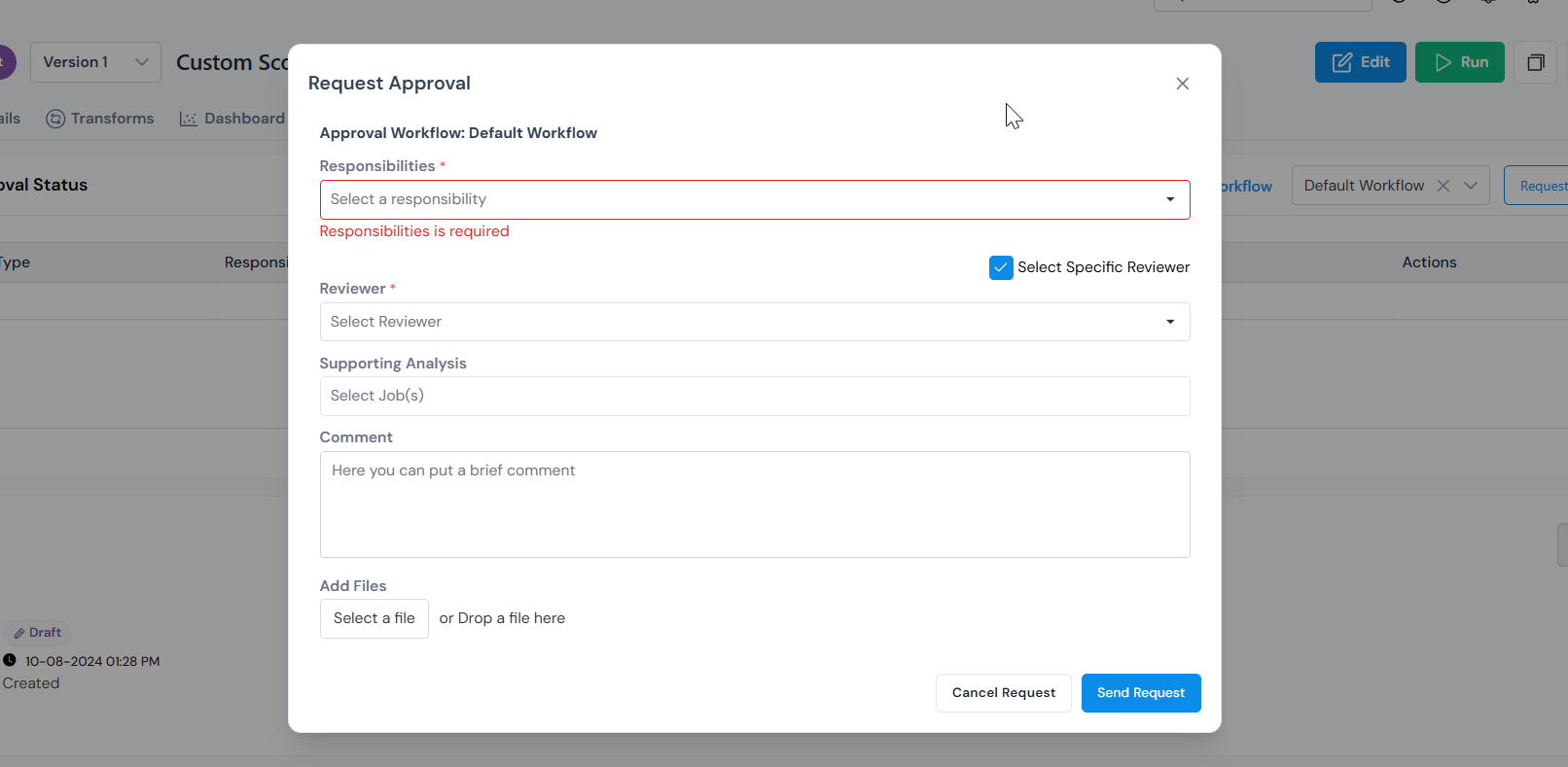
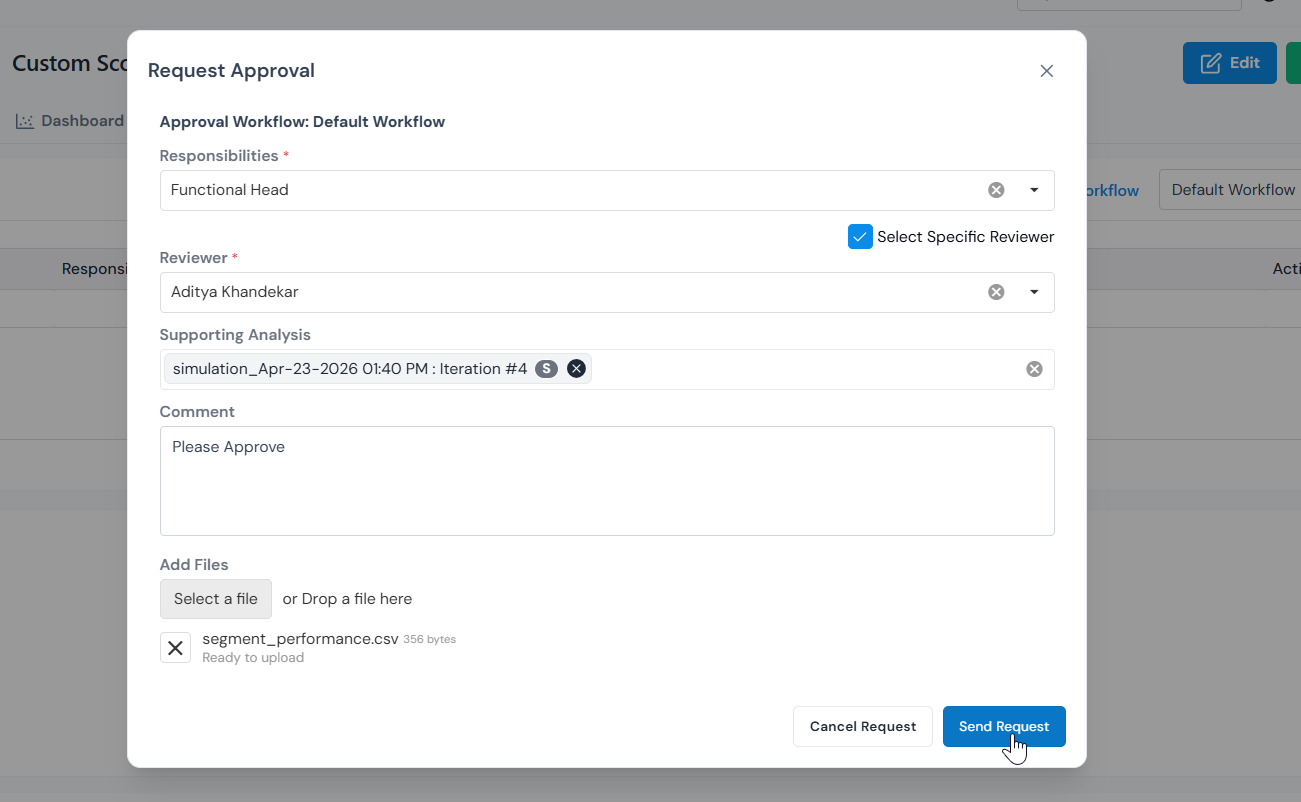
The form is titled **Request Approval** and shows the chosen Approval Workflow as a read-only header (for example, *Approval Workflow: Model MRM Approval Workflow*).
:::note[One request per responsibility]
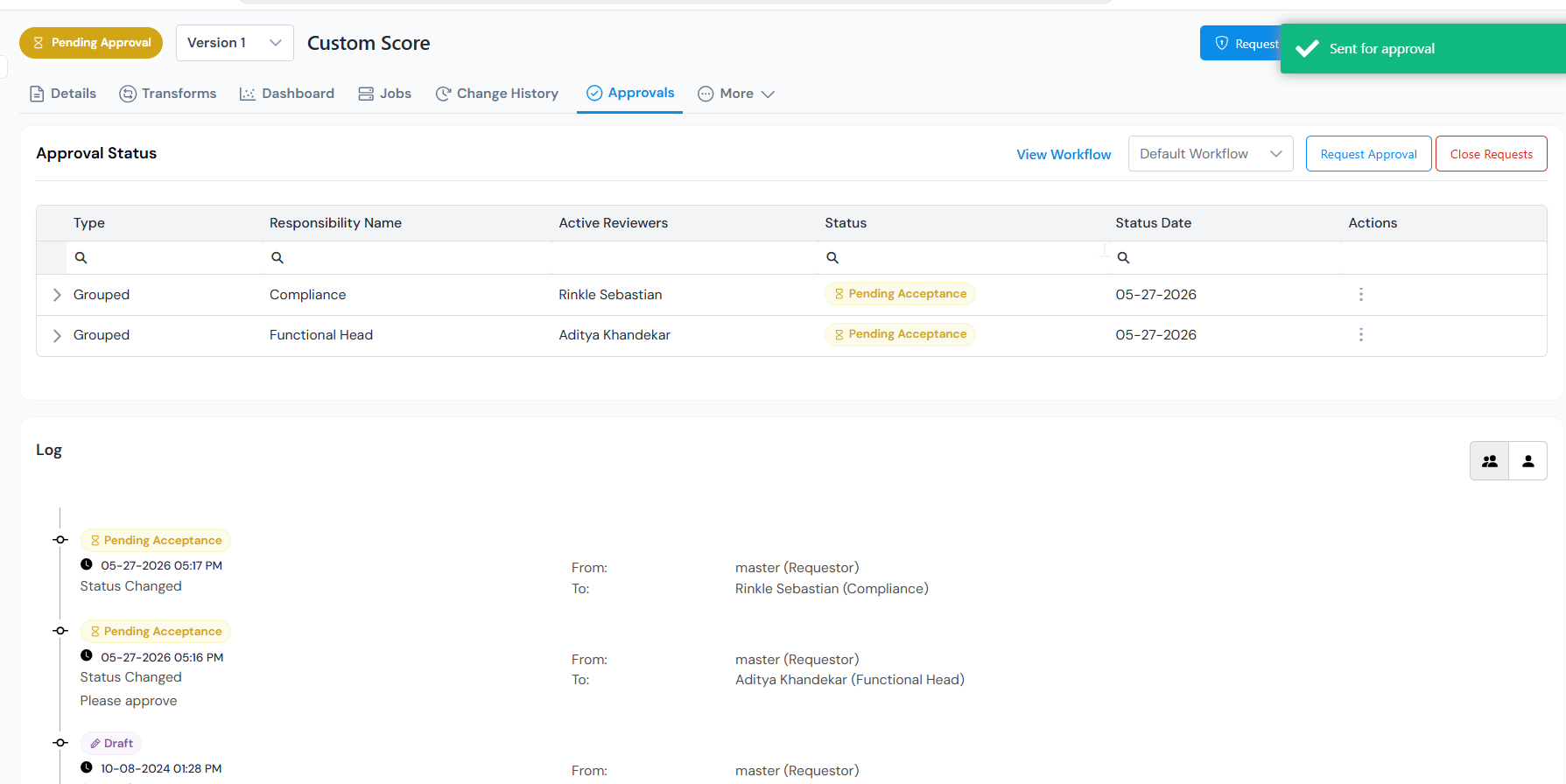
Send one request for each review role (responsibility) on the workflow: fill in the form and click **Send Request**, then repeat for the next one. In parallel workflows you can send them in any order; in sequential workflows only the current sequence group is open and the next group unlocks automatically.
:::
The Request Approval form. The selected workflow appears as a read-only header above the fields.
First, choose who reviews this request:
* Under **Select a Responsibility** (required), pick one responsibility from the workflow, for example Code Quality or MRM. Each request targets one responsibility.
* **Select Specific Reviewer** is a checkbox above the Reviewer dropdown. Left **on** (the default), you pick one user under **Reviewer** (required) and only that user is notified and can act. Turned **off**, every reviewer assigned to the responsibility is notified, and any of them can act.
#### Attach evidence and send
Next, attach the evidence reviewers see and send the request:
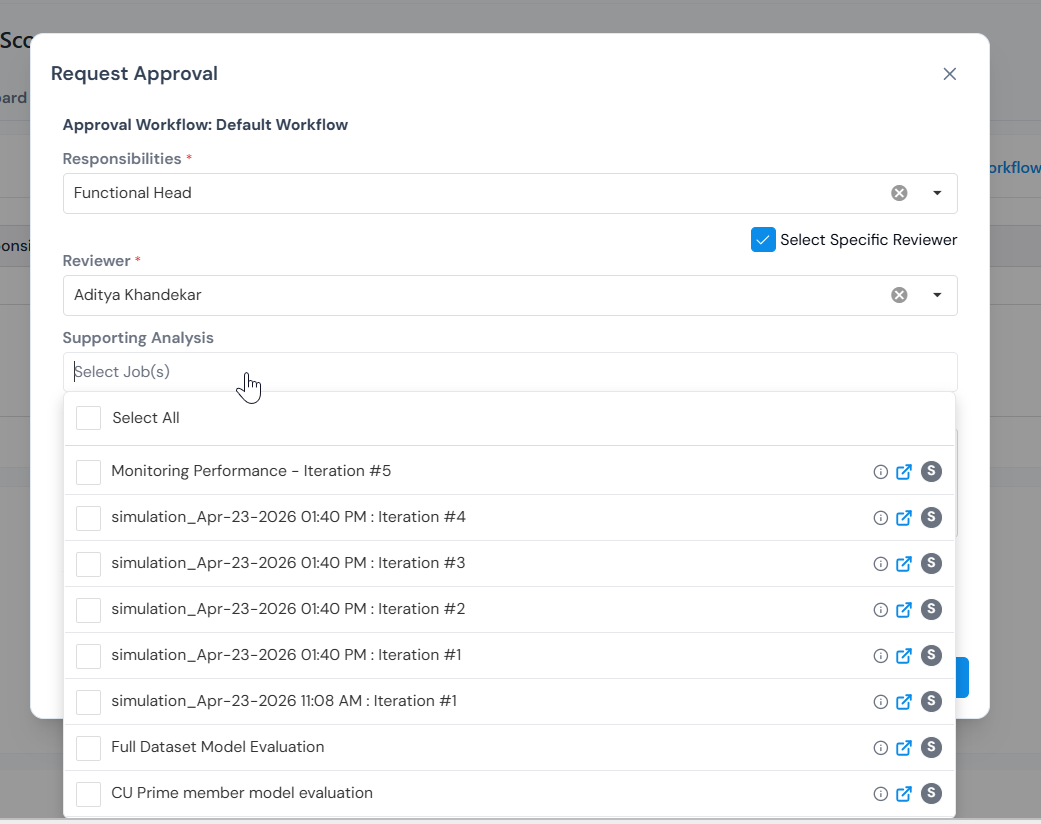
* Under **Supporting Analysis** (required), pick one or more simulations that have been run on this object. Once the request is approved, every attached job is marked verified. Admins can make this optional in **Settings**.
* Add an optional **Comment**, a free-form note for the reviewer.
* Under **Add Files**, drag a file into the drop zone or click **Select a file** to upload any supporting attachments.
Under Supporting Analysis, pick one or more simulations run on this object as evidence for the reviewer.A completed request: responsibility, reviewer, supporting analysis, comment, and an optional attached file.
Click **Send Request** to submit, or **Cancel Request** to back out. Reviewers are notified by email, in-app, or both, depending on what your Platform Admin has configured.
## After you submit: tracking the request
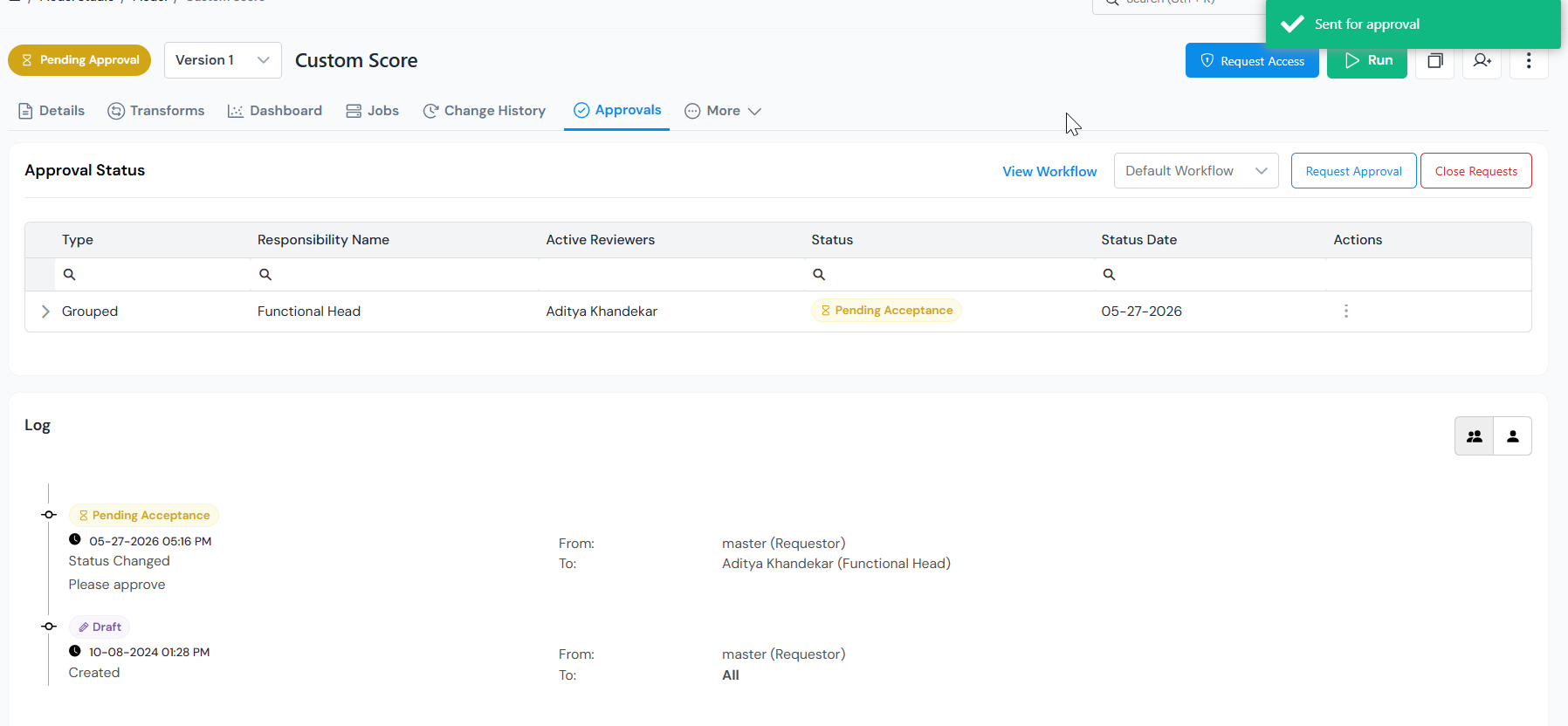
Once submitted, the object moves to **Pending Approval** and the **Approvals** tab becomes your home base. It has two parts.
After the first request, the object status changes to Pending Approval and the request appears in the Approval Status table.
**Approval Status table** (top): one row per submitted request.
Column
Shows
Type
The Approval Workflow row, or a bundled input under group approval.
Responsibility Name
The responsibility this request targets.
Active Reviewers
The user(s) who can act on this row.
Status
Pending Acceptance, Accepted, Rejected, Need Change, Need Info, or Canceled.
Status Date
When the row last changed.
Actions
Three-dot menu, see below.
**Log** (bottom): a read-only, chronological audit trail of every state change. Each entry records the event, timestamp, **From** and **To** (who initiated and where it was directed), the resulting state, and an optional comment.
Each responsibility is a separate request: submit once per responsibility, and each gets its own row and reviewer.
### Can you keep editing during review?
Responsibility setup
Editing during review
Any responsibility has Veto Power
Locked until all decisions are made.
All responsibilities are non-Veto and marked Editable
Stays editable.
### Actions while pending
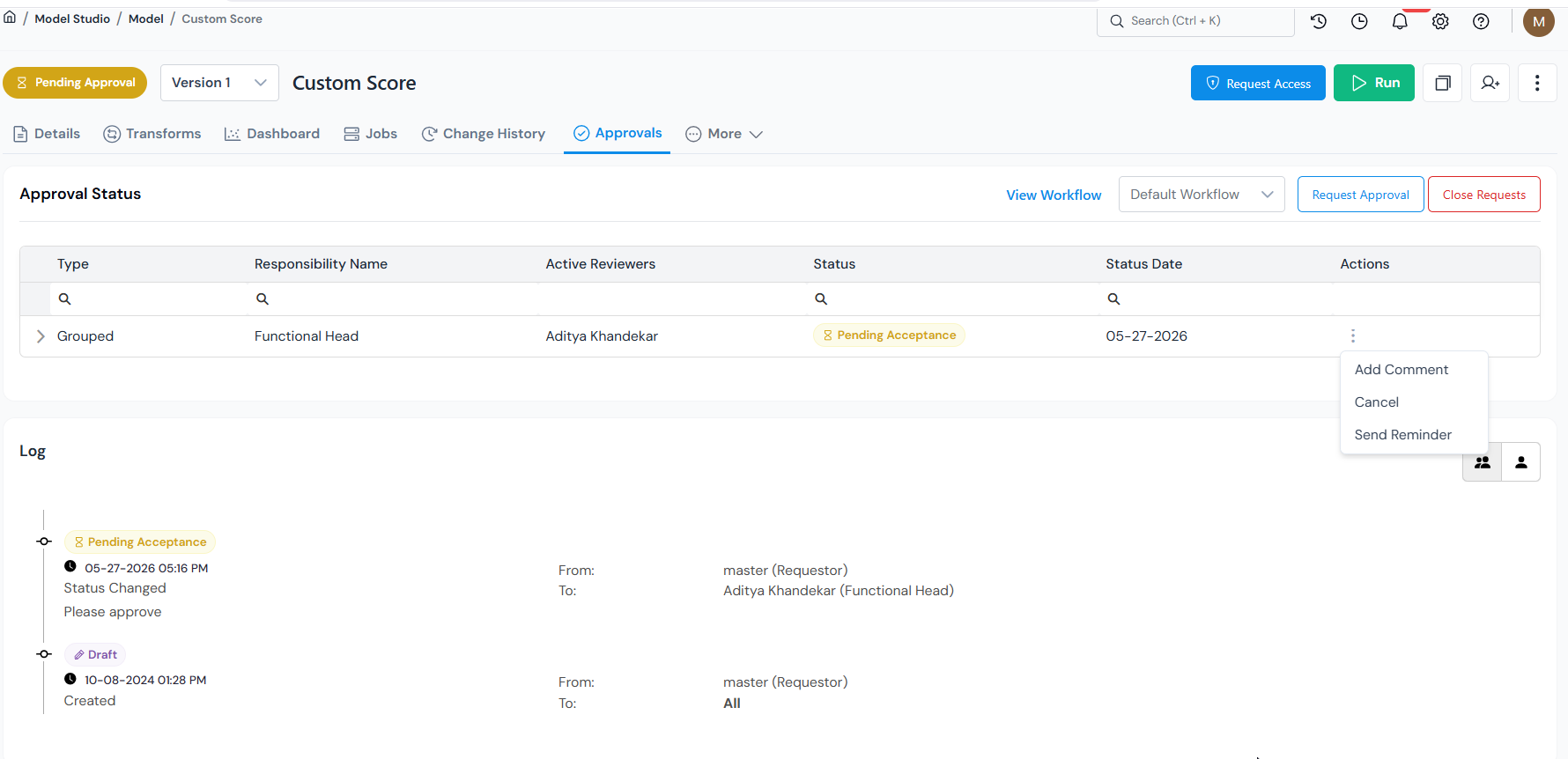
From the three-dot menu on each row:
* **Add Comment**: leave a note for the reviewer.
* **Send Reminder**: nudge a slow reviewer.
* **Cancel**: cancel only that responsibility's review (a reason is required). Other rows are unaffected.
The three-dot menu on each row offers Add Comment, Cancel, and Send Reminder.
Above the table:
* **Close Requests**: cancels every open review on the object and moves it back to **Draft**. Use this to stop the whole approval process and resume editing.
## Outcomes: what each reviewer status means
Each row in the Approval Status table reaches one of these states. **Final decisions** close the review for that responsibility:
Status
What it means and what you do
Accepted
This responsibility has signed off. When every responsibility is Accepted, the object becomes Approved.
Rejected
If the responsibility has Veto Power, the whole request is rejected immediately. By default, any rejection results in rejection. Clone the object to start a new version.
**Interim statuses** mean the reviewer needs something back from you:
Status
What it means and what you do
Need Change
The reviewer wants edits. Make the changes and Resubmit (see below).
Need Info
The reviewer wants more information (a fresh simulation, a comment, an attachment). Provide it and Resubmit.
### Resubmitting after Need Change or Need Info
1. Open the **Approvals** tab.
2. From the **Actions** menu on the relevant row, select **Resubmit**.
3. Attach a new simulation as Supporting Analysis if the reviewer asked for one.
4. Click **Send Request**.
The row goes back to **Pending Acceptance** and the object stays in **Pending Approval** throughout.
### Once everything is Accepted
* The object's status becomes **Approved**.
* Other objects can now reference it as an input.
* The version is locked. Any further change creates a new version, which must go through approval again.
## Retire an object
When an object is no longer meant to be used, **Retire** takes it out of service. Only an object in a final status can be retired: **Approved**, or (for policies) **Active** or **Shadow**. The action is permanent.
1. Open the object, and from its three-dot menu select **Retire**.
2. In the confirmation modal, add a comment. If the object has more than one approved version, tick **Retire all versions** to retire every approved version under it at once.
3. Click **Retire**. The object's status becomes **Retired**.
:::caution
Retiring cannot be undone. There is no un-retire; to work from a retired object again, clone it into a new Draft version.
:::
A retired object can still be **cloned, copied, and simulated** (including side-by-side comparison against other jobs), so you keep access to its definition and history.
Once you retire an object, the platform enforces that:
* A retired object cannot be selected as an input when you register or edit another object.
* If an object already has a retired input anywhere in its lineage, you cannot request approval for it and reviewers cannot accept it until the retired input is replaced.
:::note[Retire permission]
You need the **Retire** permission to retire an object. If you don't have it, the **Retire** button is grayed out. A Platform Admin grants it by adding your role to **Roles with Retire Permission** under [**Settings → Platform Settings → Governance**](/user-guide/admin-guide/configure-platform-settings/#governance).
:::
## What's next
* **For modelers**: once your model or policy is approved, see [Monitor your Model or Policy](/user-guide/how-tos/monitor-model-policy/) to track its performance in production.
* **For admins**: setting up the workflows themselves (responsibilities, reviewers, veto, sequence) is covered in [Configure an Approval Workflow](/user-guide/admin-guide/configure-approval-workflow/).