---
title: "Register a Framework"
description: "Register a Framework to define a reusable, parameterized calculation, such as a loan cash flow schedule, once."
---
A Framework is a reusable calculation with named inputs, written in Python. Open Product Framework → Frameworks, click + New Framework, set an Alias, add the Inputs it needs, write the Definition, and create. A Framework is versioned and goes through approval like a Model or Policy.
## What is it?
A **Framework** is a reusable parameterized definition that Policies or Models can consume as input, so shared calculation logic is defined once. It lives in the **Product Framework** module alongside [Products](/user-guide/how-tos/register-a-product/).
A Framework declares its **Inputs** (each with a name, an alias, and a type) and a Python **Definition** that computes a result from them.
For example, a `Cash Flow Framework For 36 Months Installment Loans` takes a loan amount, an interest rate, a loan term, and arrays of monthly default and prepayment probabilities. Its definition returns the month-by-month schedule: beginning balance, ending balance, interest payment, principal payment, prepayment, and payment.
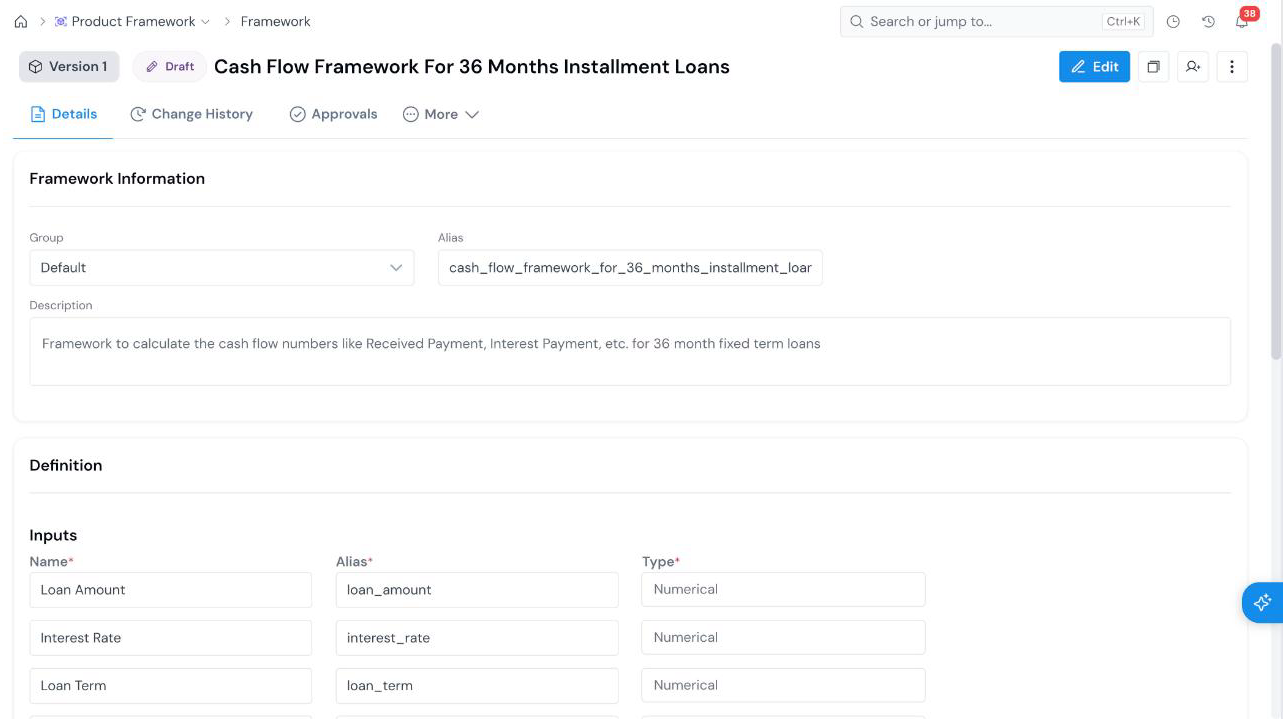
Unlike a Product, a Framework is a governed object. It has a **version** and a **status** (it starts as **Draft**), an **Approvals** tab, and a place in the Product Framework [Approval Queue](/user-guide/how-tos/use-the-approval-queue/). It can also be shared; see [Share an Object](/user-guide/how-tos/share-an-object/).
## How to Register
#### Open the Create Form
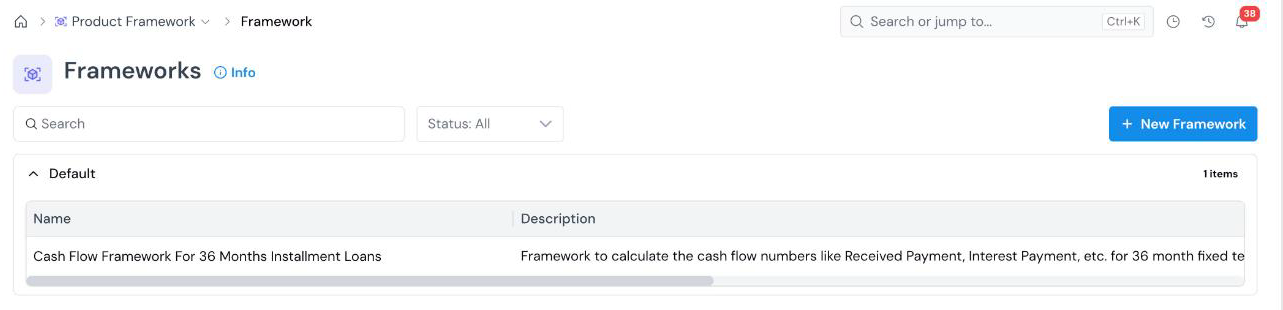
On the **Product Framework → Frameworks** page, click **+ New Framework**.
The registry lists frameworks by **Group**, with **Name**, **Description**, **Created Date**, **Created By**, and **Status** columns. Use the search box and the **Status** filter to narrow the list.
The form opens with an editable name at the top left (**New Framework**). Click the pencil icon and type a descriptive name.
#### Fill in Framework Information
| Field |
What it holds |
| Group Required |
The group the framework is filed under. See Organize Objects. |
| Alias Required |
The name used to refer to the framework in code (for example, cash_flow_framework). See Common Registration Info. |
| Description Required |
What the framework calculates. Type / for headings and lists, and @ to insert a link to another platform object. |
#### Define the Inputs
Under **Definition → Inputs**, click **Add Input** once for each value the calculation needs. Each input has three required fields:
| Field |
What it holds |
| Name Required |
A readable label (for example, Loan Amount). |
| Alias Required |
The variable name the definition uses (for example, loan_amount). |
| Type Required |
The data type: Numerical, String, DateTime, Boolean, Array[..], Map[..,..], or Struct[..]. Use an array type for a value per period, such as Array[Numerical] for monthly probabilities. |
#### Write the Definition
In the **Definition** editor, write the calculation in Python. Each input is in scope under its alias. Return the result of the calculation.
For example, a cash flow framework reads its inputs and returns one list per schedule column:
```python
term = int(loan_term)
if interest_rate is None or loan_amount is None or term is None:
return {
"beginning_balance": [],
"ending_balance": [],
"interest_payment": [],
"principal_payment": [],
}
```
#### Create
Click **Create** at the bottom right. The Framework is saved as a draft, at **Version 1**, and you land on its details page.
## The framework details page
- **Details**: Framework Information and the Definition (inputs and code).
- **Change History**: the record of edits.
- **Approvals**: where you send the framework for review. See [Approve an Object](/user-guide/how-tos/approve-an-object/).
- **More**: additional tabs for the object.
## What's Next
- [Approve an Object](/user-guide/how-tos/approve-an-object/) to move the Framework from Draft to Approved.
- [Register a Product](/user-guide/how-tos/register-a-product/) to define the product whose parameters feed the framework.
- [Share an Object](/user-guide/how-tos/share-an-object/) to give a colleague access to a draft.