

User Guide
Register a Product
Ask AI
Register a Product and its configuration parameters so Policies and Models can read loan amount, rate, and term from one place.
What is it?
Section titled “What is it?”A Product is a registered product definition, held in the Product Framework module. It carries two things:
- Product Information: descriptive facts about the product, such as its code, industry, market, and liability structure.
- Configuration Parameters: the typed values the product exposes, such as a potential loan amount, an interest rate, and a term. Each parameter has an alias, so other objects can refer to it by name.
For example, a 36 Month Consumer Installment Loan product can expose potential_loan_amount, a potential interest rate, and a product term. A job that depends on those values asks for them as Product Type Configs when you run a simulation.
Products are not versioned and do not go through an approval workflow. They also cannot be shared with other users the way approvable objects can; see Share an Object.
How to Register
Section titled “How to Register”
Open the Create Form
Section titled “Open the Create Form”
Open the Create Form
Section titled “Open the Create Form”On the Product Framework → Product page, click + New Product.
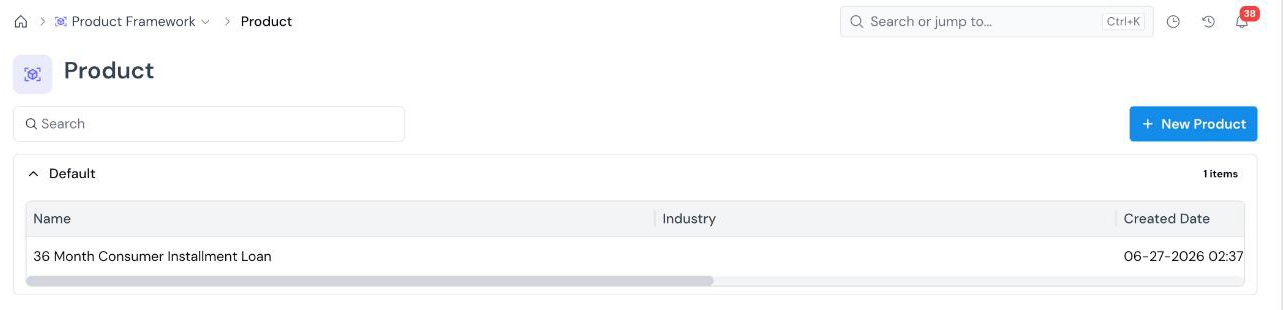
The registry lists products by Group, with Name, Industry, Created Date, and Created By columns. Use the search box to filter by name.
The form opens with an editable name at the top left (New Product). Click the pencil icon and type a descriptive name (for example, 36 Month Consumer Installment Loan).
Fill in Product Information
Section titled “Fill in Product Information”
Fill in Product Information
Section titled “Fill in Product Information”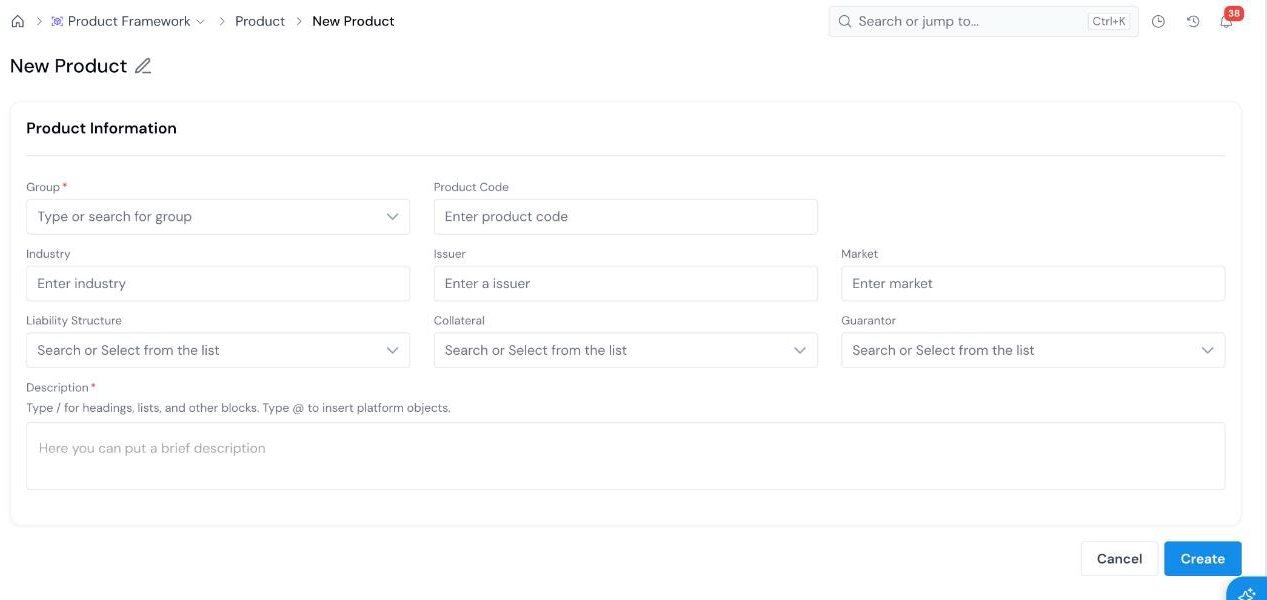
| Field | What it holds |
|---|---|
| Group Required | The group the product is filed under. The registry page lists products by group. See Organize Objects. |
| Product Code | Your internal code for the product. |
| Industry | The industry the product serves. |
| Issuer | The institution that issues the product. |
| Market | The market the product is sold into (for example, Consumer). |
| Liability Structure | Who is liable on the product. Pick from the list (for example, individual). |
| Collateral | The collateral type, picked from the list. |
| Guarantor | Whether the product has a guarantor, picked from the list. |
| Description Required | What the product is and who it is for. Type / for headings and lists, and @ to insert a link to another platform object. |
Click Create at the bottom right. You land on the product’s details page.
Add Configuration Parameters
Section titled “Add Configuration Parameters”
Add Configuration Parameters
Section titled “Add Configuration Parameters”Open the Configuration Parameters tab and click Edit at the top right. An Add Configuration Parameter row appears below the existing parameters. Click it to add one.
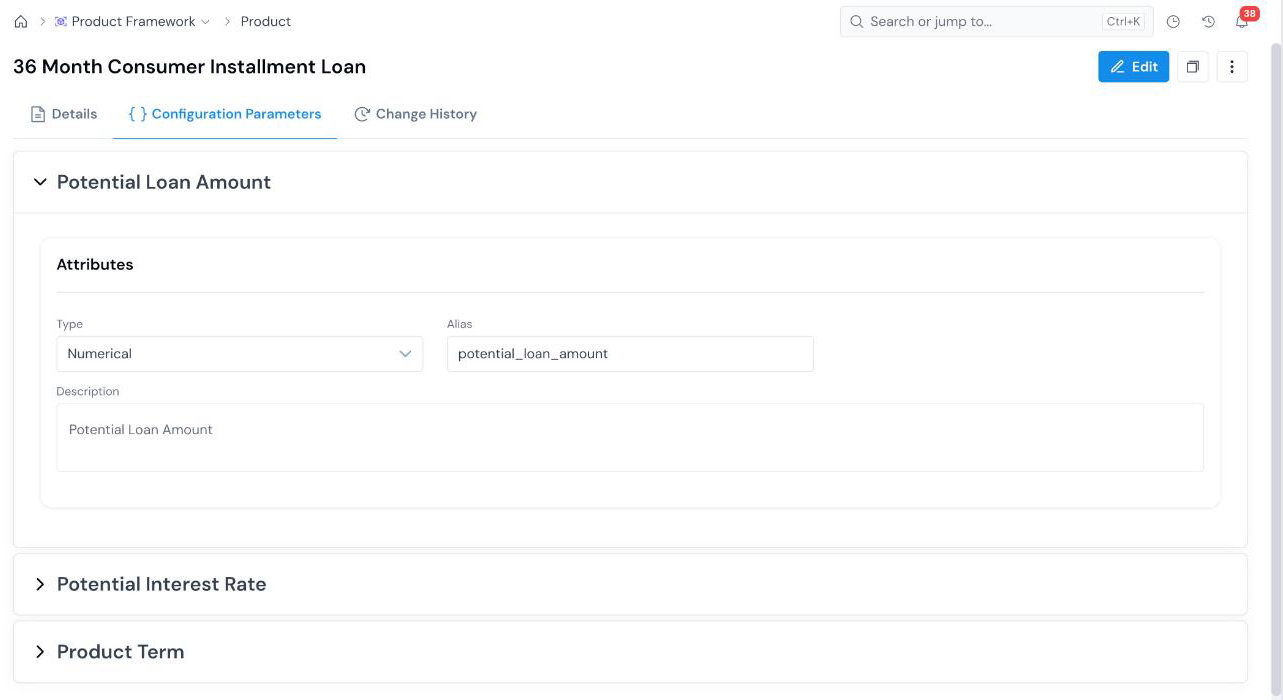
Each parameter is a collapsible panel named after the parameter, with three attributes:
| Field | What it holds |
|---|---|
| Type | The data type of the value (for example, Numerical). |
| Alias | The name other objects use to refer to the parameter (for example, potential_loan_amount). |
| Description | What the parameter represents. |
Click Stop Editing to leave edit mode.
The product details page
Section titled “The product details page”A registered product has three tabs:
- Details: the Product Information you entered.
- Configuration Parameters: one panel per parameter.
- Change History: the record of edits to the product.
What’s Next
Section titled “What’s Next”- Register a Framework to define reusable calculations, such as a cash flow schedule, on top of product inputs.
- Register a Policy Decision Workflow to use offer configuration in a Policy.
- Run a Simulation to see where Product Type Configs are supplied as job dependencies.
Was this page helpful?
Thanks for the feedback.